
User Guide
How to use TalentHub365 — end to end
TalentHub365 takes a club, academy, county or school programme from unknown applicants to a registered squad in one place: public apply links, application review, live scoring on the day, selection decisions, then season registration with consents and medical details handled securely. After that it runs the squad's sessions and matches. This guide covers the whole journey — the admin side, what families see, and thirteen step-by-step scenarios.
Guide version 4.4.9 · updated 5 October 2026
1. What TalentHub365 does
- Events are open intake. Every event has a public apply link anyone can use — share it and unknown players apply.
- Applications are reviewed, evaluated on the day (check-in, live scoring, observations), and decided — Successful, Reserve or Rejected — with the matching emails sent from the event.
- Squads are closed season rosters. You add the players you chose; there is deliberately no public signup link for a squad.
- Registration runs per player: each family gets a personal link to complete emergency contacts, medical details and consents for the season.
Admin work happens signed in at talenthub365.app or the iOS/Android apps. Families never need an account — applying, registering and responding to invites all run from links you share.
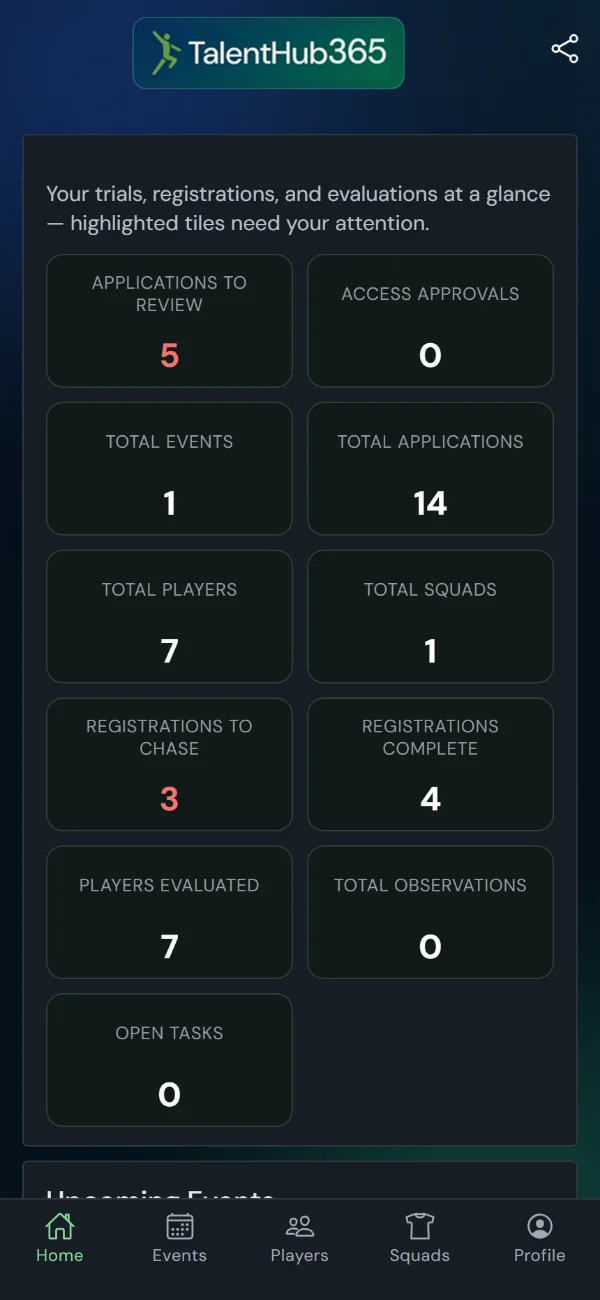
Where things live: the signed-in app has five tabs — Home (dashboard and KPIs), Events, Players, Squads, and Profile (organisation, staff, settings, email templates).
2. Getting started
Signing up
- Go to talenthub365.app and sign in with Google, Apple, or your email — enter your address and we email you a 6-digit code to type in on the same page. No password to remember, no link to click, and it works even if you read your email on a different device.
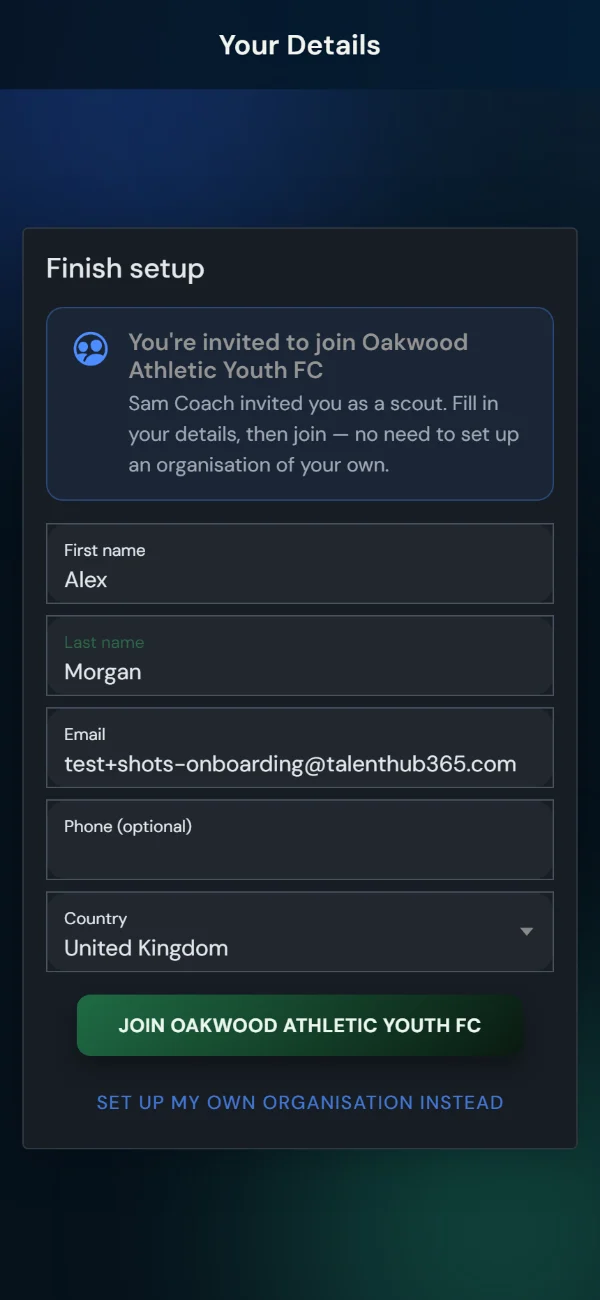
- Joining a club that invited you? If your email holds a pending staff invitation, onboarding offers it as the final step — tap Join [club name] and you land straight in their organisation, correct role and all, with nothing of your own to set up.
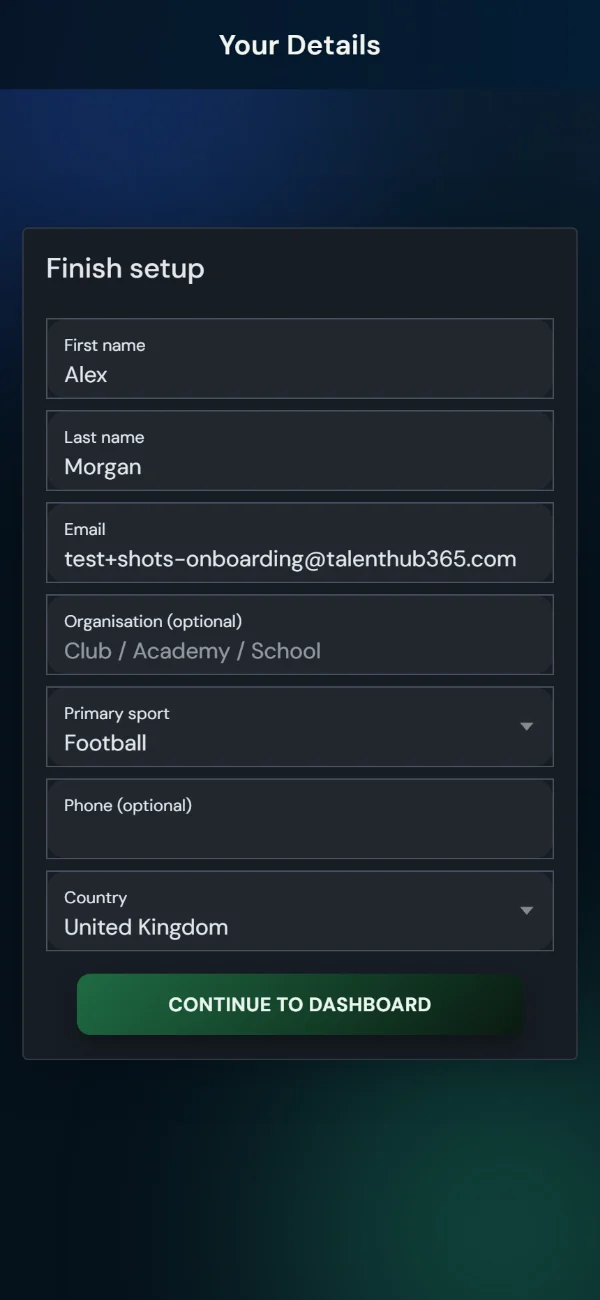
- Setting up your own club? Your organisation is created automatically on first sign-in; you are its owner. (Even with an invite waiting, "Set up my own organisation instead" keeps this path open.)
- A welcome email arrives shortly after — replying to it reaches a real person.
Roles at a glance
| Role | Scope | What it allows |
|---|---|---|
| Owner / Admin | Account | Everything: events, squads, registration data, medical reveal, staff, billing. |
| Scout / Coach | Account | Staff seat for the people who run events, squads and scouting, without account administration. |
| Evaluator | Account or event | Scores and observes players at events. Evaluators are unlimited and free. |
| Event admin / contributor / evaluator | One event | Per-event roles so helpers see only the event they are invited to. |
More than one organisation
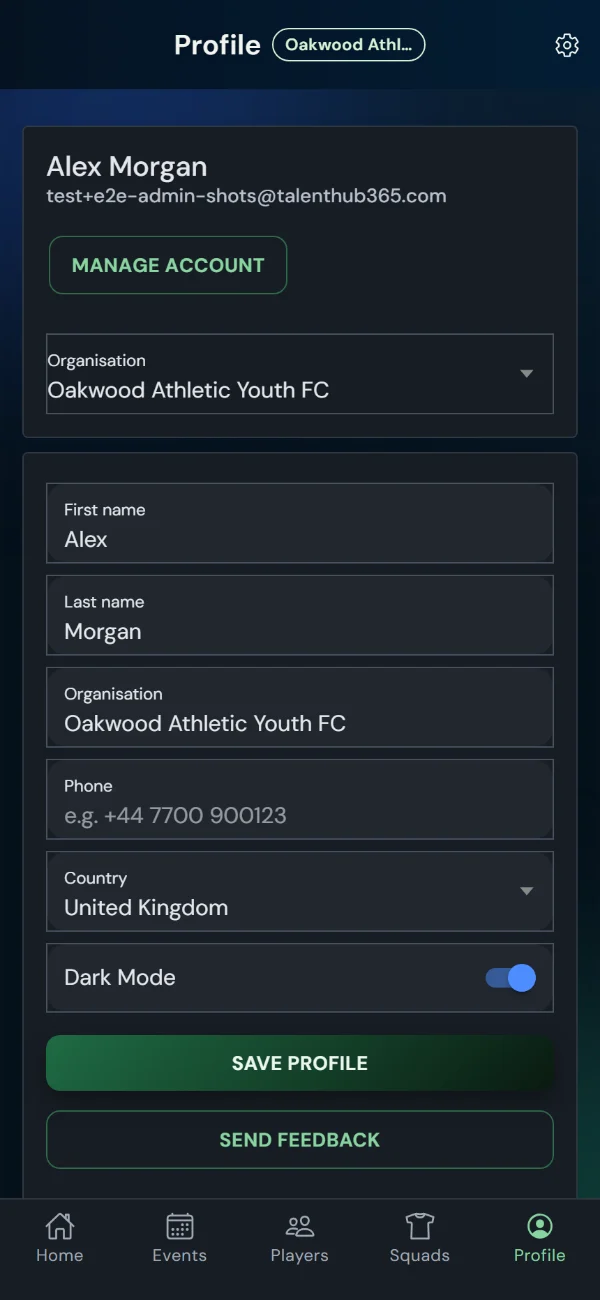
You can belong to several organisations — your county association and your own club, say — with one active at a time. The Profile tab always names the organisation you're working in, and when you belong to more than one, a switcher sits right under Manage Account: pick a different organisation and the whole app follows. If the app ever looks emptier than you expect, check the Profile tab first — you're probably just in the wrong organisation.
3. Events: open intake
Creating an event — live in about two minutes
- Events tab, then the + button (or Start Your First Trial on the empty Events screen).
- Five quick steps: sport, the basics, dates (a trial run across several evenings can carry multiple date options), venue & contact, then the application form — picked from the starter templates below as a single tap, no form-builder visit needed. Applications are switched on by default.
- Creating lands you on the go-live screen: your public apply link, a QR code ready to screenshot, a share button, Poster (square) and Poster (story) to generate a ready-to-post social image, and one-tap routes to fine-tune the form or open the event. From nothing to accepting applications, most events take about two minutes.
Venue, address and meet time
- Paste the venue address once, venue included. The public venue name fills from the start of it, and is all that listings and the apply form show. The full address goes only to families you have invited, with a Directions button for Google Maps, Apple Maps or Waze.
- Each date can carry a meet time, set as how long before the start: 45 minutes before a 12:00 kick-off is 11:15, and it moves if the start moves. It shows beside the date everywhere, and as {meetLine} in emails.
The application form builder
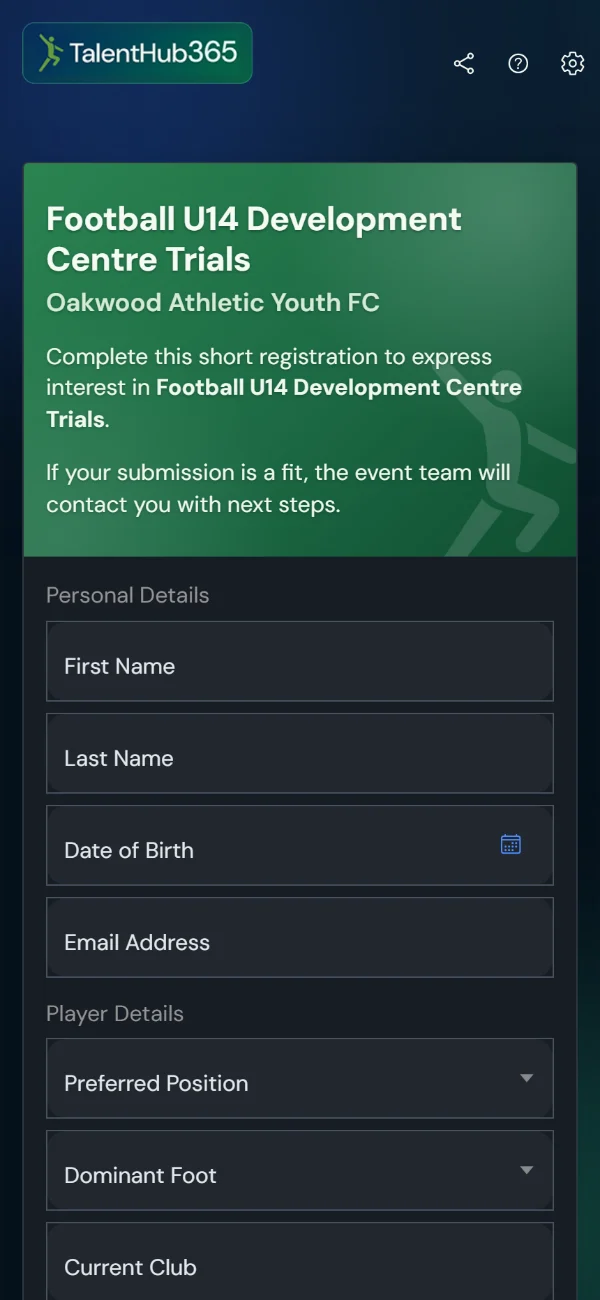
Every event owns its application form, seeded from the template you picked at creation. The form builder is there when you want more: sections, fields from the built-in catalogue, your own custom fields, required flags, helper text, header branding and intro text. Preview shows exactly what families will see. The starter templates:
| Starter template | Built for |
|---|---|
| Youth Trial (under 18) | Quick trial signup for a player under 18: player, parent or guardian, light medical checks. Preselected for under-18 age groups. |
| Adult Trial (18+) | The same for a player aged 18 or over: an emergency contact instead of a parent, wording addressed to the player. Preselected when every age group is U19 or older, Senior, 1st Team, Reserves or Open. |
| Academy Full | Comprehensive academy intake: profile, guardian, club/league history, consents. |
| School & County Trials | Representative selection: school and home postcode as eligibility, playing history, medical triage, both consents, and a trial-date choice section. |
| Expression of Interest | Dates not fixed yet — collect interest now, invite later. |
Templates adapt to the event's sport automatically — positions, dominant foot or hand, and terminology follow the sport profile.
Sharing and controlling applications
- The event Overview shows the Public Apply Link with copy, share and QR actions — WhatsApp groups, posters, school newsletters.
- Share Poster (go-live screen, and Event Actions → Share) generates a finished image for the socials in one tap: your club name and logo, the title, dates, venue, age groups, apply-by date, and the apply link with a scannable QR. Square for feeds and WhatsApp groups, portrait for Instagram stories and WhatsApp status. It uses the colours, logo and watermark you set on the apply form, so add those first if you want it in your look. On a phone it opens the share sheet; on a computer it downloads the PNG.
- An inline toggle enables or disables applications at any time; a close date can do it automatically.
- Get the form right before sharing — edits apply to forms opened after you save.
Duplicate Event
When the U16s trial is basically the U14s with different dates: open the source event's menu and choose Duplicate Event. The copy carries the event details, the application form verbatim, date options, branding and your staff — while applications, players and the apply link stay fresh (a new link is minted, applications start disabled, status resets to open). A multi-date trial can also spin one date option out as its own event, copying across the applicants who picked that date.
4. Applications: review & decide
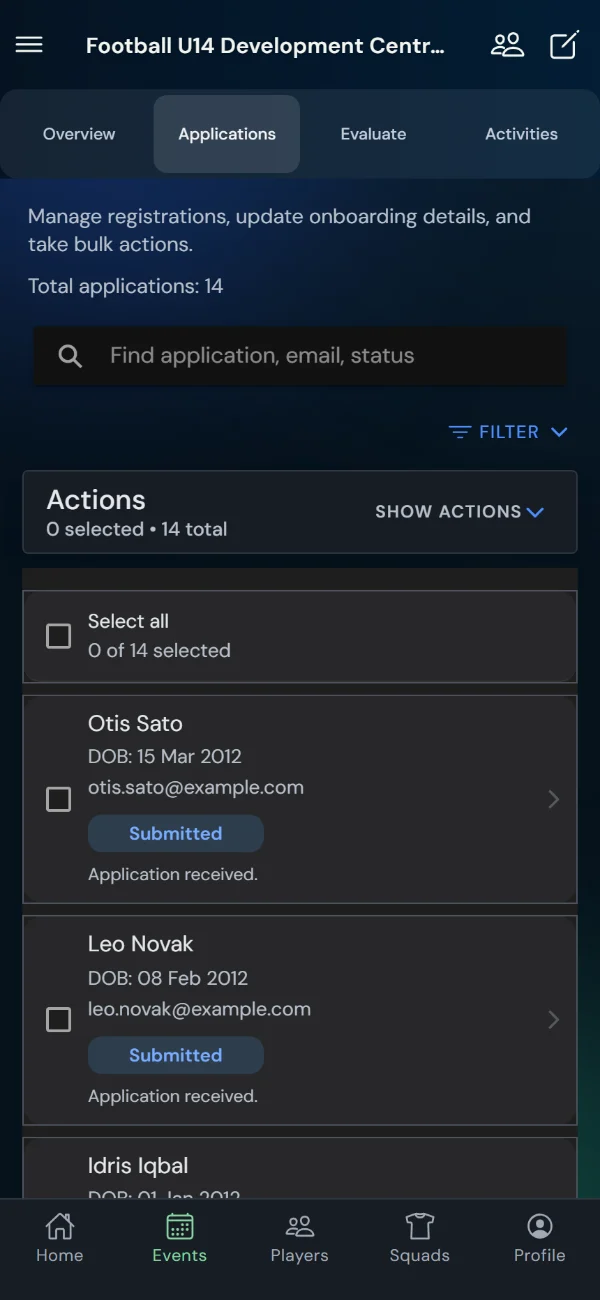
- The event's Applicants tab lists every application with search and status filters; open one to see every answer, correct details, and record notes.
- Add Player To Event handles walk-ups and phone applications; Import Applications brings a spreadsheet in with reusable column mappings.
- Review & Decide is the decision surface: filter, compare, and set outcomes — Successful, Reserve or Rejected — in bulk or one by one. Its Event dates chips narrow a multi-date trial to one date; Scores lists names and scores highest first, by your score or the combined one.
- Move to date… sets one trial date on the selected applicants and offers that date's saved message straight after, so a family who can't make Sunday is on Wednesday's list and has Wednesday's email in two taps. Not sent filters to the families a saved message has not reached, Has comment to those who wrote something on their reply or the form, and Changes lists every correction on the applications — a family's own date pick on the invite page included.
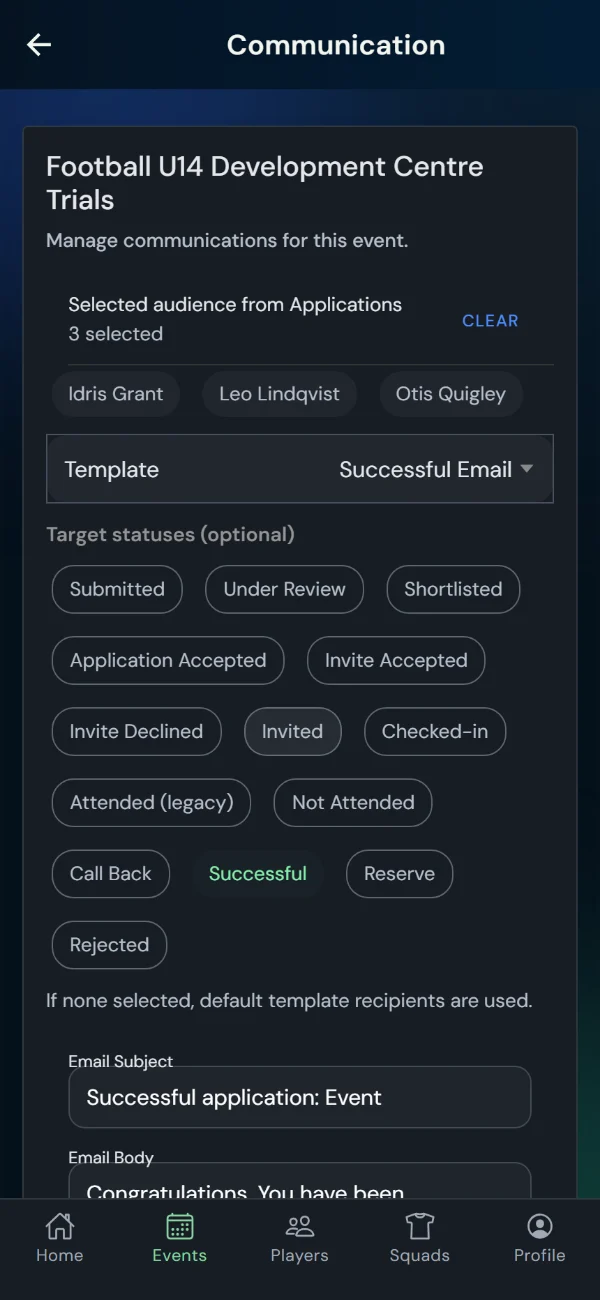
Applicants get an automatic acknowledgement when they apply. Everything else is sent deliberately
from the event's communication page: an Invitation template that carries one-tap
accept/decline links, Successful / Reserve / Rejection outcome emails, and
Update / Custom for everything else. Save your wording once as the account default in
Profile settings; a saved message can be marked for one of the event's dates, so it is the one offered when a
family moves and Only those who haven't had this message keeps a resend from reaching them
twice; variables like {playerName} and {eventTitle} personalise
each send, and a per-event log shows delivery counts.
5. Event day
- On the day the event's Overview leads with a Today card: Check in and Evaluate for tonight's date, one tap each.
- Check In / Check Out tracks who is present; late arrivals can be added on the spot. The desk shows each team's count (Orange 7/8), and a walk-up without a bib is offered a free one from the team with the fewest here. Tap a player's bib to swap it with another player's, change it or clear it; the Quick find chips (birth month, day, first letter) fold away until you need them.
- Generate Teams & Bibs splits attendees into balanced teams with printable bib sheets. Manage Teams swaps two players in a tap and numbers a merged team from the free bibs; History keeps every generation, edit, swap and clear, searchable by a bib ("red 3").
- Evaluate is where evaluators work: ratings and quick observations per player, tuned for phones at the pitch. Present tonight switches itself on once someone has checked in tonight, so the roster is who is actually here; Not scored by me shows what is left; the header's Refresh pulls in other evaluators' scores; Scores in the menu lists names and scores highest first, printable.
- Evaluators only need an invite — and their devices keep working through bad venue signal: data is captured offline and syncs when the connection returns.
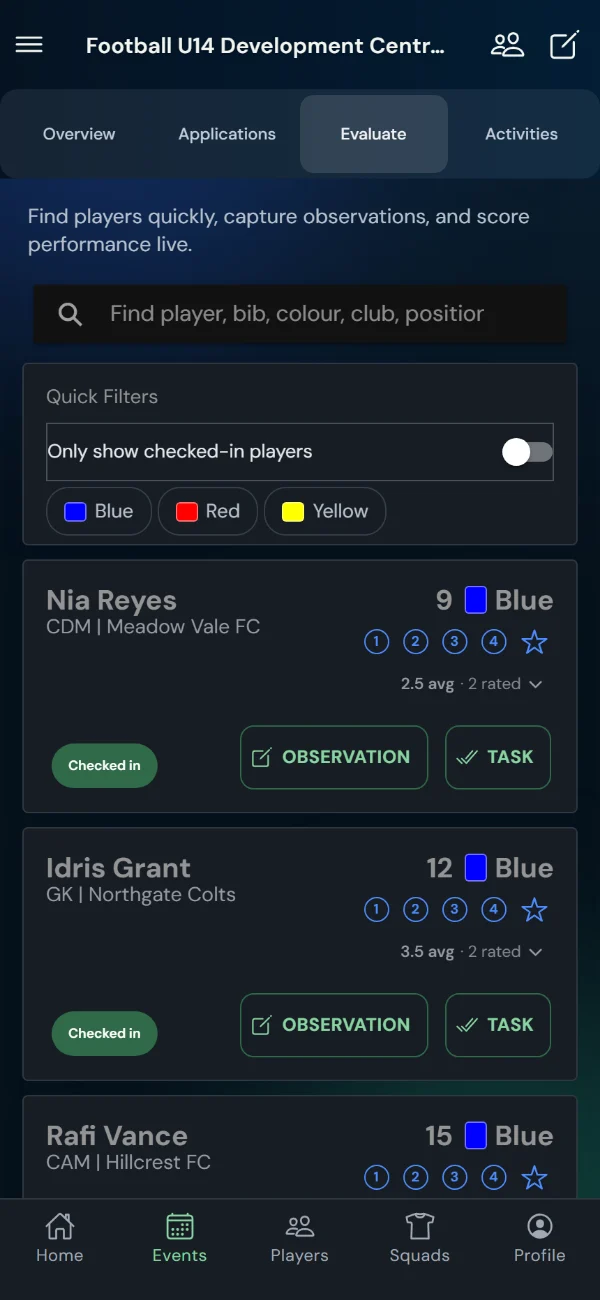
Prepare the night before: open the event on each evaluator's phone while on good wifi, so a dead spot at the venue doesn't stop scoring.
6. From selection to squad
- Finish decisions on Review & Decide and send the outcome emails.
- Select the Successful applications and use Add To Squad — pick an existing squad or create one on the spot. Player profiles are created automatically from the application data.
- Reserves can be revisited if places open; the Training Invitation squad template also exists for inviting reserves to train without a playing registration.
7. Squads & season registration
A squad is the group you take forward for a season — "U12 Girls · 2026/27". Players join it from an event's applications or from your account's player list. There is no public signup link for a squad: only players you chose are ever on the roster, which keeps the season's medical and consent data limited to the people it should cover.
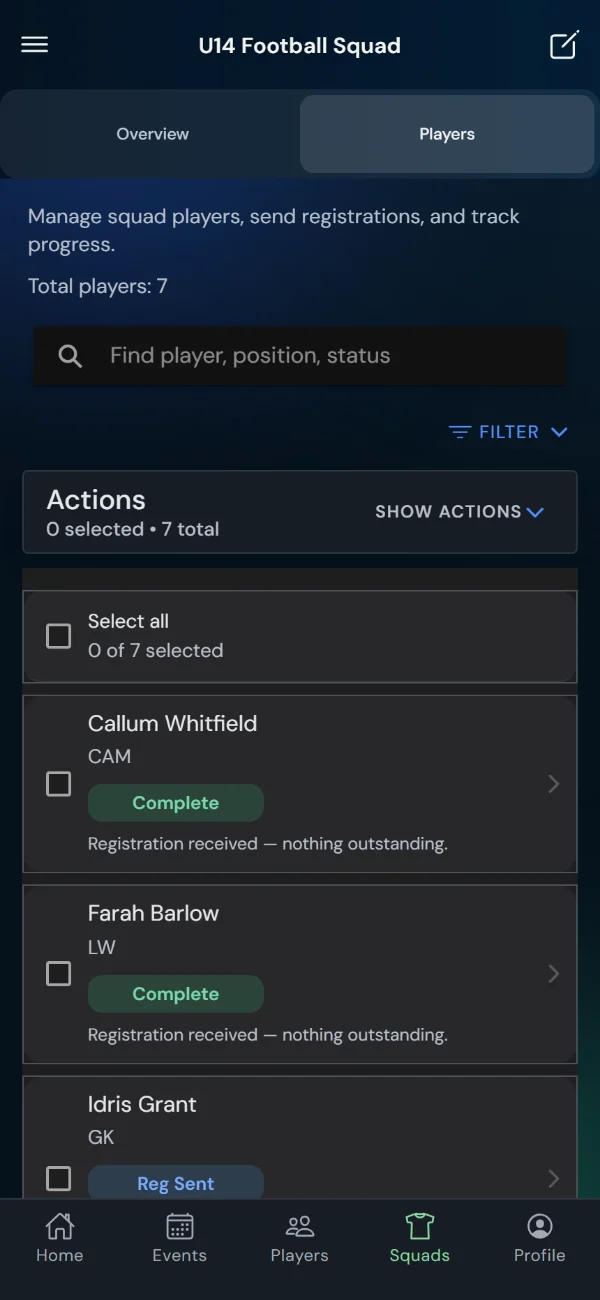
How registration flows
- Add players to the squad (from an event or manually).
- On the squad's Players tab, select players and send the Registration Invitation email — this mints each player's personal link and delivers it.
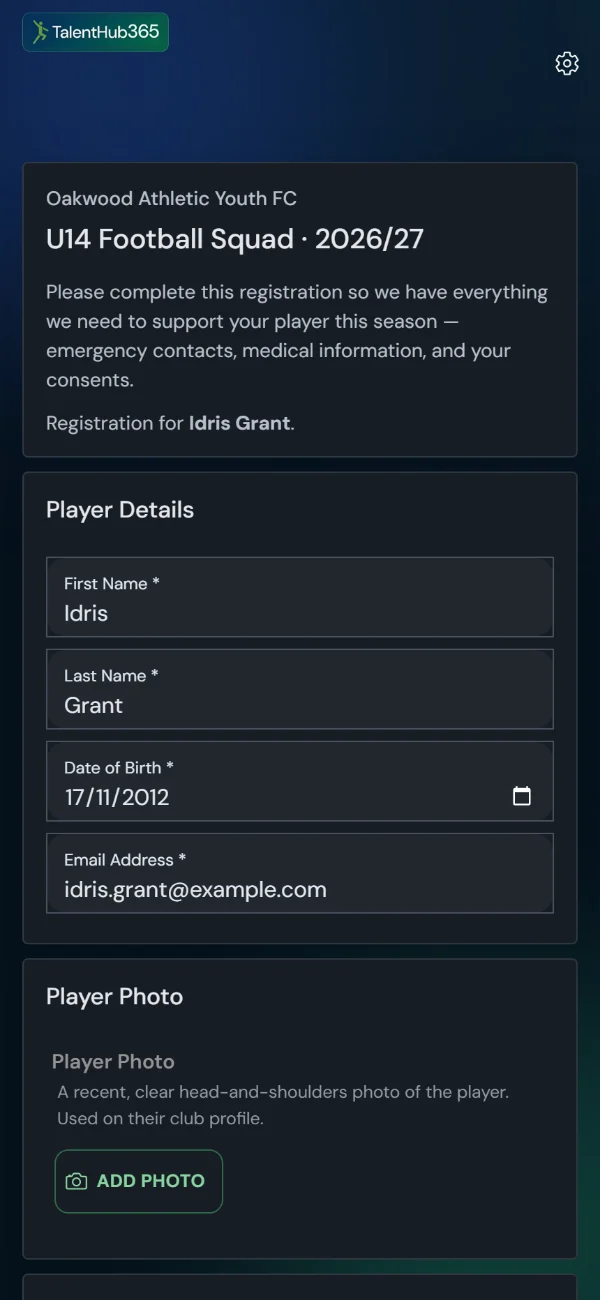
- Families complete the form from their link — about five minutes covering emergency contacts, doctor details, a structured medical checklist, a player photo, and consents.
- Chase stragglers with the Registration Chaser template — reminder wording, the same personal link (refreshed if expired), and it never knocks anyone who has started or completed back a stage.
| Stage | Meaning |
|---|---|
| Added | On the squad, no link issued yet. |
| Reg sent | Personal link issued and emailed. |
| Started | The form was opened. |
| Complete | Submitted — answers stored, consents recorded, medical encrypted. |
| Expired | Link passed its 30-day life unused — resending mints a fresh one. |
| Declined | The family turned the place down (from their link, or recorded by an admin). |
When families go offline
- Paper form: print a blank registration form, have it completed and signed, then use Record Paper Form — consents are transcribed with the admin's name attached and the signed sheet stays with the club as evidence.
- Verbal decline: when a family says no at training, Mark as Declined records it with the reason attributed to you; they leave the chase list but stay on the roster with the record intact.
Medical data and consents
- Medical answers are encrypted at rest; owners/admins reveal them just-in-time when needed, and every reveal is written to an access log.
- Consents are versioned records of exactly what the parent saw and agreed. Admins can never edit a consent — only transcribe a signed paper one, marked as such.
Squad communication and admin
- Send Message from the Players tab with audience selection or stage targeting; a confirm step shows exactly how many emails will go before anything sends, and secondary parent/guardian addresses can be included.
- A document library per squad attaches codes of conduct and info packs to emails; sent emails log with delivery counts.
- Roster admin: squad numbers, CSV export, printable roster, and a per-player registration journey with every change attributed.
Sharing the squad sheet
When someone outside your staff needs the squad for a while — match officials or a league checking a team sheet, a safeguarding or welfare officer, a tournament organiser, a volunteer covering a session — Share squad sheet on Squad Actions sends a secure, time-limited link instead of a spreadsheet that sits in an inbox for ever.
- A short link and a six-digit PIN you send separately. It lasts 24 hours, 3 days or 7 days, and you can revoke it at any time.
- It lists players whose registration is complete: shirt number, position, names, date of birth and clubs. Coach notes, roster highlight stars, photos, parent contacts and printing are each off until you tick them.
- Contacts and photos appear only for families who agreed to them. Nothing medical is ever on a shared sheet.
- An open sheet closes three hours after the PIN; five wrong PINs lock the link and email your squad contact.
- Preview Roster shows exactly what they will see before you send anything, and the link counts opens and devices so you can tell if it has travelled.
8. Sessions, matches & the match plan
Once you have a squad, the same app runs its training sessions and matches. A session or a match is an event like any other, in its own words: players, not applicants, and nobody applies.
From the squad to the day
- Squad Players tab, New Session or New Match. The whole squad goes on it, or the players you ticked. It is invite-only, with no public link.
- Send the Session Invitation. Each family accepts or declines from their own link, and the Players tab shows who has answered.
- On the day, Check In / Check Out and Evaluate work as they do at a trial.
Two views: the match plan is the coach's, and nothing on it is sent to anyone: not the substitutions, the bench or how much each player gets. A family sees only their own child's brief, and only once you publish it.
The match plan (coach's view)
- Open Match plan from the match's Overview. Pick a formation for your side size, halves or quarters, and the least everyone plays: half a match, or one period.
- The roster lists every player with their main position and the others they can play. Tap the line to change it for today. The word on the right says how much of the match they get: half only, more, the full match, or not today.
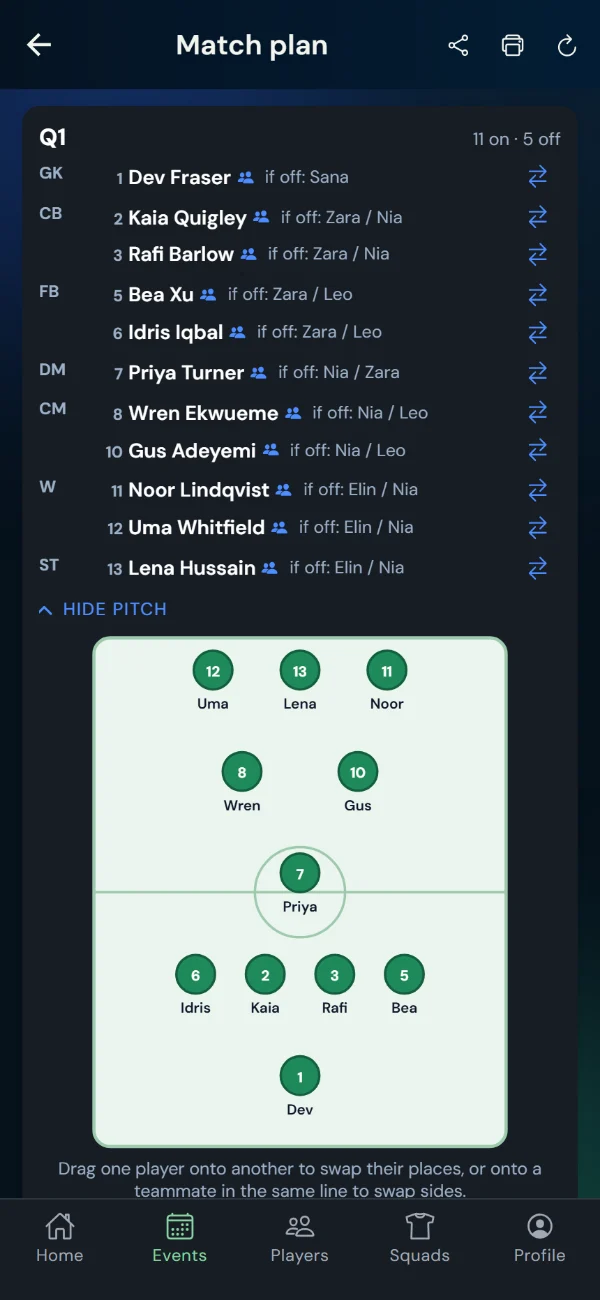
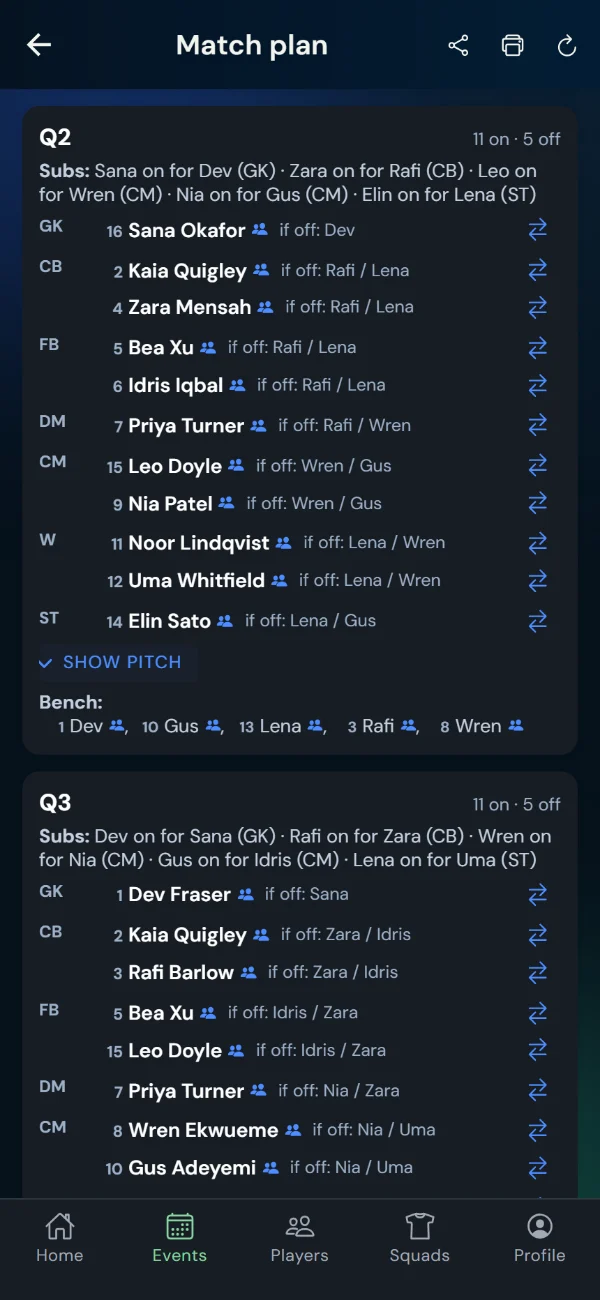
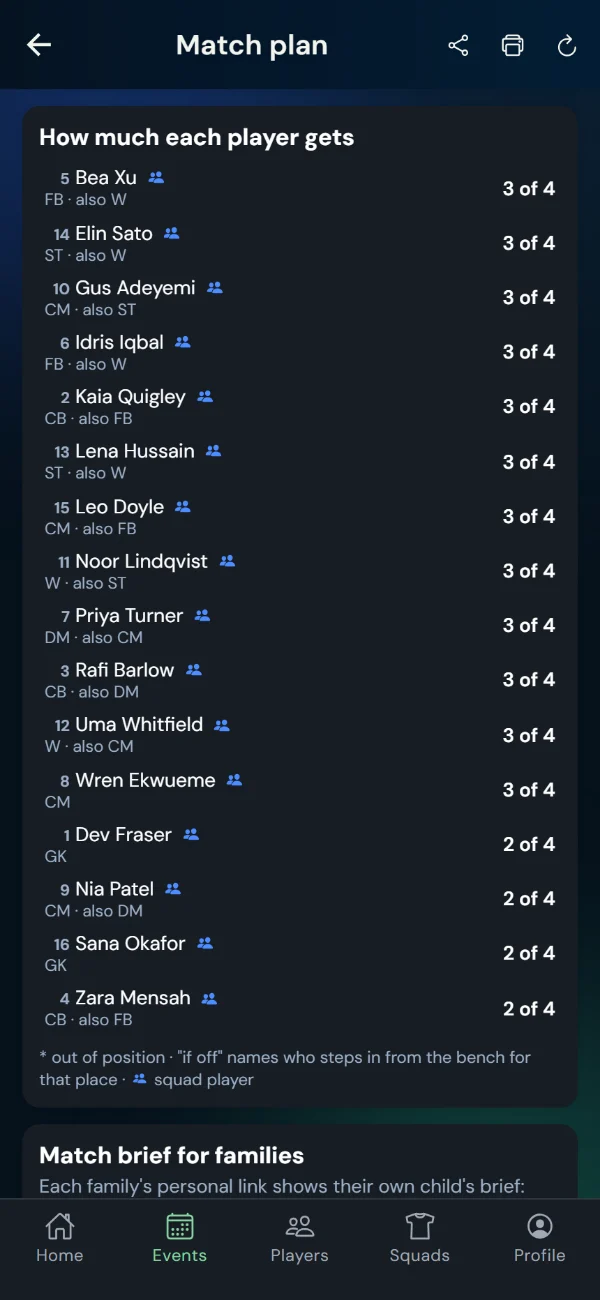
- Generate gives a card per period: the lineup, who comes on for whom, the cover for every place if someone goes off, and the bench. The table underneath shows how much each player gets, with their positions under their name.
- Change a place by hand with the swap icon, or open Show pitch and drag one player onto another. Shirt numbers come from the squad and can be changed for the day.
- Save as… keeps a plan under a name beside the plan in play: a 4-4-2 beside the 3-5-2, or the plan without a player who might not make it. Load one to work on it; Save makes it the plan in play.
- Share sends the match day list to the team chat. Print puts the periods, the pitches and the totals on paper.
The match brief (player's view)
- Under the plan, add two or three playing principles and a line of focus for each player, from the suggestions or in your own words.
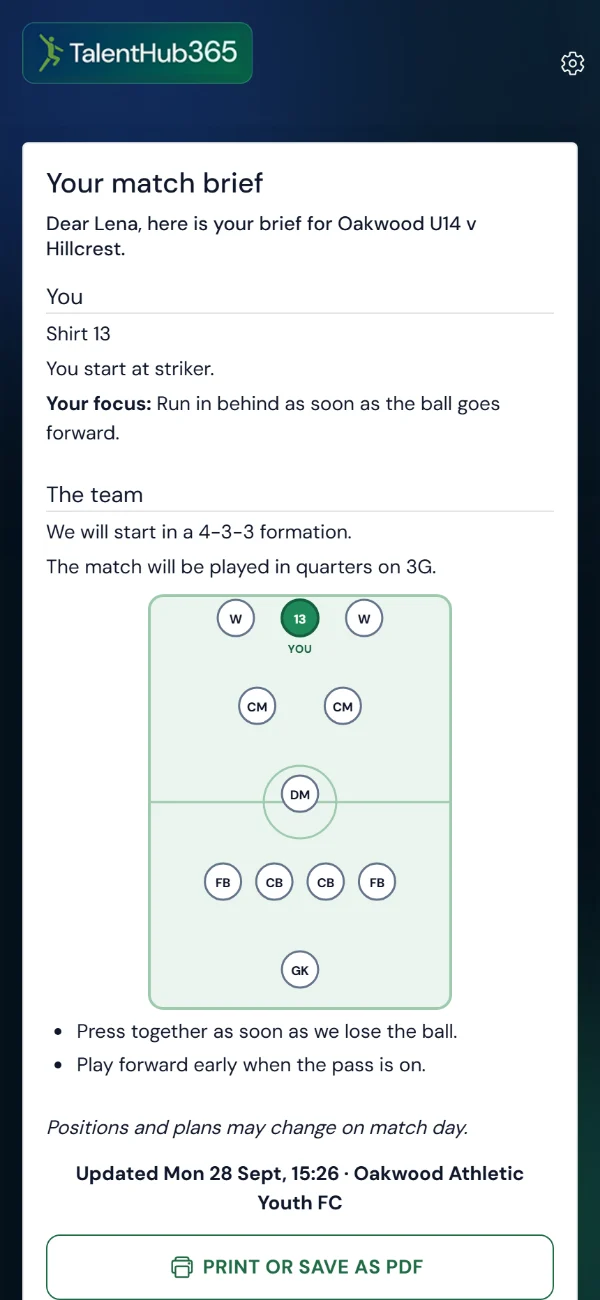
- Publish puts each player's brief on their family's personal page: their shirt, where they start or when they come on, their focus, the formation and the principles. Nothing about any other player, and never the substitution plan or the minutes.
- Families see the plan that was on screen when you pressed Publish. Change it afterwards and the page says it has changed since it was published, until you publish again.
- The eye beside a player previews exactly what their family will see.
- Send brief opens the Match Brief Email with the brief's players selected. Nothing goes until you press Send.
Every sport, its own shape: netball's seven, hockey, basketball, rugby's permanent substitutions, volleyball's sets. The formations, the cuts of the match and the cover rules follow the event's sport.
9. What families see
Applying to an event
- They open your apply link or scan the QR — no app, no account.
- An intro card explains the event; the form collects what you built, including trial-date choices.
- On submit they get an acknowledgement email and the application appears instantly in your list.
Registering for the season
- The family opens the personal link from their registration email — identity and contact details are pre-filled.
- They complete emergency contacts, medical details, photo and consents in one sitting (about five minutes — answers save on submit).
- A family not taking the place can decline on the same page, with an optional reason.
A session or a match
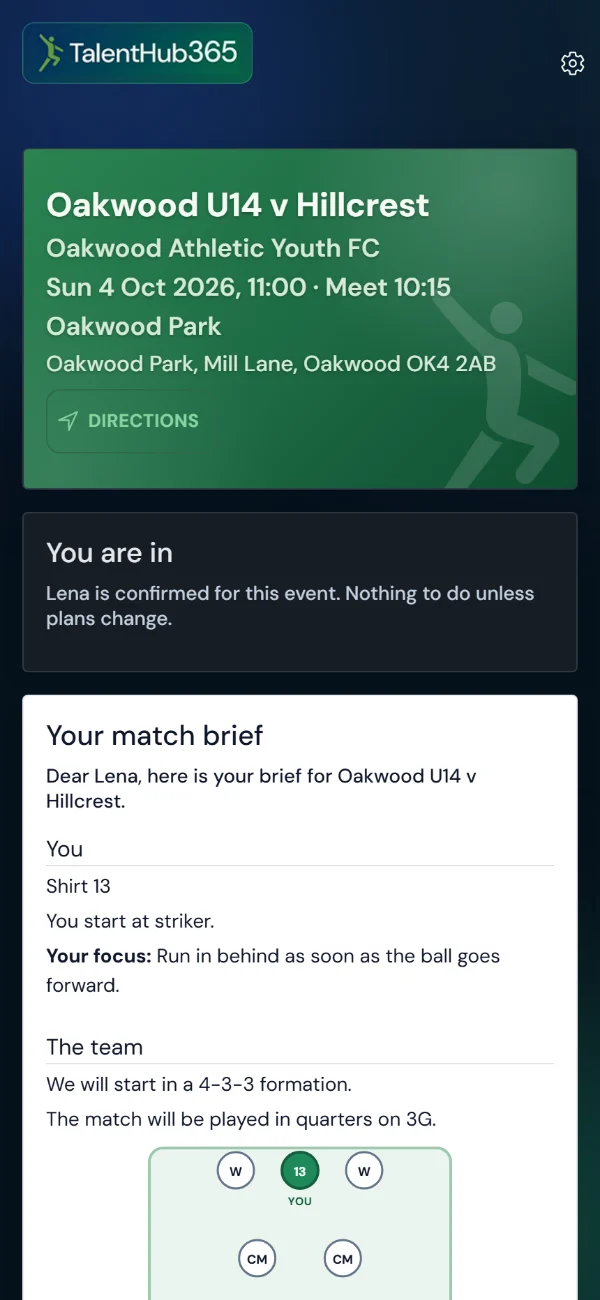
- The invitation's personal link opens the family's page: the date, the meet time beside the kick-off, and the venue with its address and a Directions button.
- They accept or decline there. Once they are in, the page says so, and a small line lets them say they can't make it after all.
- When the coach publishes the match brief it appears on the same page, for their child only, and prints on one sheet.
Privacy by design: personal registration pages are excluded from search engines, links expire after 30 days, and re-opened links never replay medical answers. The apply page, by contrast, is deliberately public and shareable.
10. Staff, roles & organisations
- Invite staff by email from your organisation settings — the invite works even before they have signed up.
- Event-level roles scope helpers to a single event — right for guest coaches and matchday evaluators (unlimited and free).
- A person can belong to several organisations and switch the active one from their profile.
- Account emails carry your own Reply-To address and branding, set in Profile settings.
11. Thirteen common scenarios
1 — Run a trial from scratch
- Create the event — five wizard steps, with your evenings as date options and the form picked from a template at the end (School & County Trials for representative programmes, Trial Basic otherwise).
- You land on the go-live screen with applications already open: share the apply link and QR straight into WhatsApp groups and newsletters — or tap Fine-tune the Form first if you want to adjust questions.
- Review applications as they arrive; send Invitation emails to attendees.
- On each evening: check in, generate teams and bibs, evaluators score on their phones.
- After the last session: Review & Decide, then send Successful / Reserve / Rejection emails.
2 — Same trial, another age group
- Open the source event's menu and choose Duplicate Event.
- Change the title in the prompt and confirm.
- Adjust dates and age group in the copy, check the form.
- Enable applications and share the new link — it is unique to this event; nothing leaks between the two.
3 — Selected players into a squad with registration
- Mark your picks Successful and send the outcome email.
- Select them and Add To Squad (creating the squad if needed).
- Check the squad's registration form and the Registration open switch.
- Players tab: select all, Send Message, Registration Invitation, include secondary emails, send.
- Watch stages move to Complete; the Home tile counts who is left to chase.
4 — Chase outstanding registrations
- Squad Players tab, Send Message.
- Template: Registration Chaser. Target the "Reg sent" and "Started" stages.
- Send — reminders go only to the unfinished; nobody's progress is reset and expired links refresh automatically.
5 — A family declines in person
- Open the player on the squad's Players tab.
- Mark as Declined, add the reason, confirm.
- Their link is voided, the stage shows Declined with the reason on record, and they stay on the roster. If they change their mind, send a fresh Registration Invitation.
6 — Parent lost the email / link expired
- Open the player on the squad's Players tab.
- Re-send the Registration Invitation (a live link is re-used; an expired one re-minted), or open the Personal Registration Link box and use Copy / Share / QR to hand it over directly.
7 — Paper registration at the pitch
- Print the blank registration form from the squad.
- Have it completed and signed.
- Member page: Record Paper Form — signer's name, tick the consents granted on the sheet, mark complete.
- Enter their answers via Edit Registration; keep the signed sheet on file.
8 — A walk-up on trial day
- Event menu: Add Player To Event and take their details.
- Check them in; they appear for evaluators like everyone else.
- Collect the full application afterwards by sharing the apply link with the family.
9 — Medical details needed at matchday
- Open the player and reveal medical details — owners/admins only.
- Every reveal is logged; the access log shows who looked and when.
10 — Bring in a co-manager and evaluators
- Invite the co-manager by email with an admin or scout role — the invite survives them not having an account yet. However they sign up — from the invite link or on their own — onboarding offers Join your organisation and lands them in the right place.
- For trial-day evaluators, add them to the event with the evaluator role — unlimited and free.
11 — Send the squad something that isn't registration
- Squad Players tab, Send Message, template General Update or Custom.
- Write the message — team app invites, fixture news, anything — and attach a document from the squad library if useful.
- The confirm step shows the exact email count before sending.
12 — A parent asks for their data
- Export: the player's data can be exported as a file from their profile — that is the subject-access answer.
- Erasure: deleting a player cascades through applications, registrations, observations and files. It is permanent — confirm the request in writing first.
13 — Plan Sunday's match and brief the players
- Squad Players tab, New Match. Set the date, the meet time and the venue address on the event.
- Send the Session Invitation and watch the replies come in on the Players tab.
- Match plan: pick the formation, mark anyone who is not playing today, Generate, and adjust by hand.
- Save as… for a second formation, or for the plan without a doubtful player.
- Add the principles and each player's focus, Publish, then Send brief.
- On the day: Share the list to the team chat, print the plan, and check players in at the gate.
12. Reference
Email template variables
| Variable | Substitutes |
|---|---|
| {playerName} / {firstName} / {lastName} | The player the email concerns. |
| {eventTitle} | Event title (event emails and forms). |
| {squadName} / {season} | Squad name and season (squad emails and registration forms). |
| {organisation} | Your organisation's name. |
| {registrationLink} | The player's personal registration link — using it forces one email per player. |
| {trialDate} | The date the family holds, or every date the event offers when they hold none. |
| {venue} / {venueAddress} | The venue's name, and its full address on a line of its own (event emails to invited families). |
| {meetLine} | "Meet 11:15 · Kick-off 12:00" for the family's date, when the date has a meet time. |
| {personalPageUrl} | The family's personal page: accept or decline, the information pack and the match brief. |
Good to know
- Apply links are per event and permanent; registration links are per player and expire after 30 days.
- Evaluator scoring works offline at venues and syncs back automatically.
- The web app updates continuously; iOS and Android follow via the stores.
- Help: the ? icons in-app, or email support@talenthub365.com.